Posted Batches
Posted Batches allows you to:
-
Review posted batches and print Batch Reports.
-
Make edits to batch code or date.
-
Reactivate a batch to send to the Accounting module.
Access Posted Batches
To access from the Button Bar, go to Donations > Posted Batches.

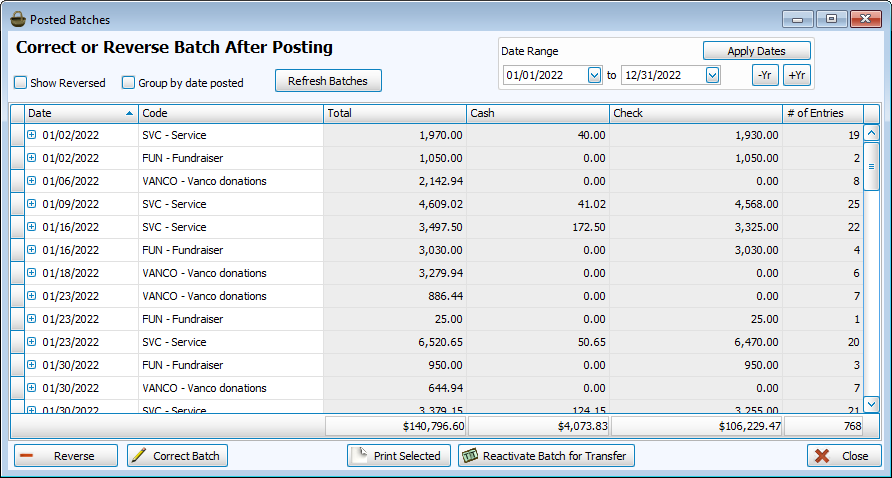
Viewing Posted Batches
-
In the Posted Batches window, you can use the Date Range filters in the upper right hand corner to only see batches with a Donation Date in that range. Click Apply Dates after inputting your dates to apply it to the grid display below.
-
Click the plus to the left of a batch date to see the donations included in that batch.
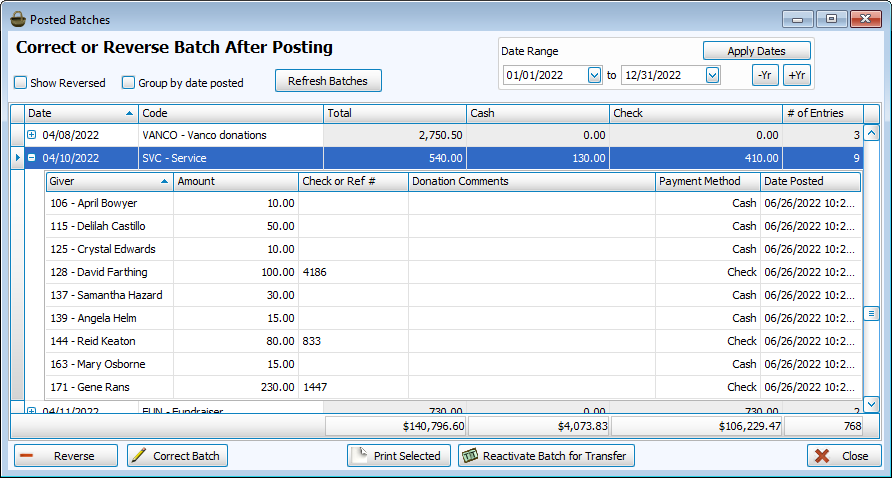
-
Click Group by date posted to see a separation of batches that were entered on the same date. For example, if you have two Sunday services, leave this box unchecked to see the total donations entered on that day and check the box to see the totals for each batch.
Print Batch Report(s)
-
Highlight the batch. To select multiple, hold down your SHIFT key to select a range or your CTRL key to select individual dates.
-
Click Print Batch.
-
Use the Donations Batch Reports options to make changes to your default settings if you'd like.
-
Click Print to open your report in a Print Preview.
Correct a Batch
Batch corrections pertain to the Enter Donations fields that apply to every donation in a batch. If you need to make a correction to an individual donation, you'll want to go to Browse in order to Correct Donations
-
Highlight the batch you want to correct.
-
Click Correct Batch.
-
Make changes to the Batch Date Occurred or the Batch Code.
-
Click OK to post this change to the Donations module. Click OK & Transfer to post this change to Donations and go into the Transfer to Accounting workflow.
Reverse a Batch
Reversals are a permanent way of removing a transaction while still maintaining a solid audit trail, as opposed to a deletion. Reversals are often hidden in Browse screens and reports, but can be included by checking a box to Include Reversed Transaction or Donations.
-
Highlight the batch you want to reverse.
-
Click the Reverse button.
-
Add any comments about the reason for the reversal.
-
Click OK to post the reversal. Click OK and transfer to post and open the Transfer to Accounting window.